Description
Your Profile, accessible via user Settings or Preferences, shows personal details Shield imported from a user's Microsoft account and their Shield-specific preferences. Users can customize their Shield experience from here. Shield Admins access this page from the Configure Preferences menu of the User Page.
Managing Your Shield Profile
The Your Profile page holds a link to the Security Briefing, the user's personal details from Microsoft 365, and the preferences that control how Shield handles their email. Settings are grouped into five sections: Imported from Microsoft, Email preferences, Shield app, Shield Intelligence, and Control Settings.
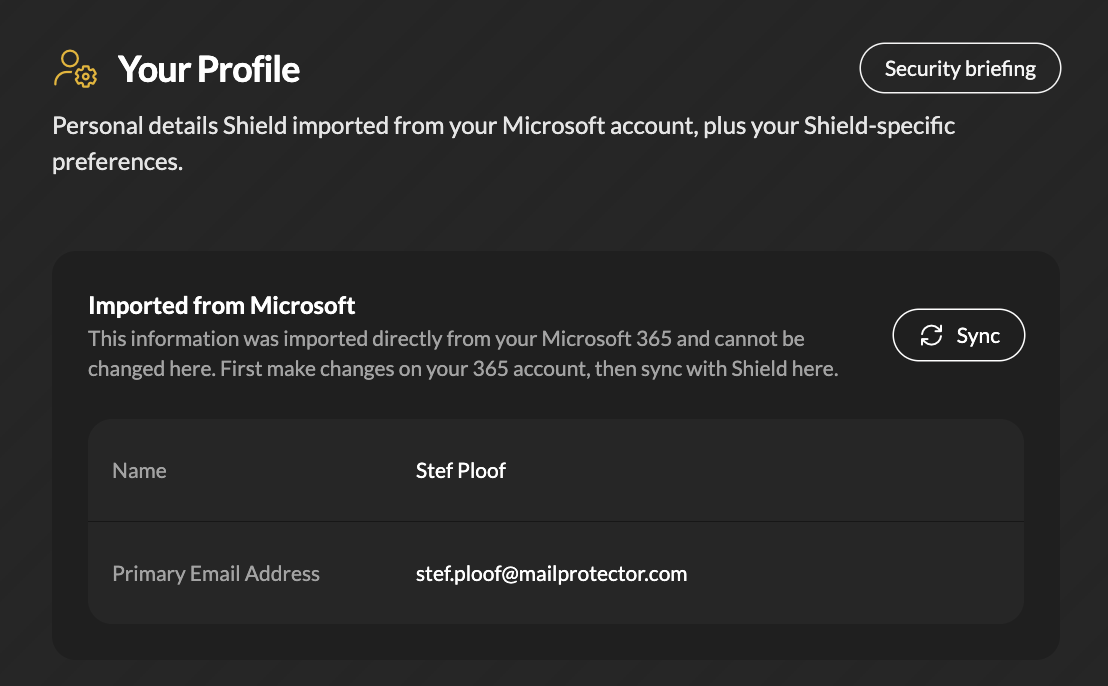 Imported from Microsoft
This section shows the user's Name and Primary Email Address as imported from their Microsoft 365 account. These fields are read-only in Shield. To update them, make the change in Microsoft 365, then select Sync to pull the updated details into Shield.
Email Preferences
Email preferences determine where Shield delivers mail based on its risk level and its sender.
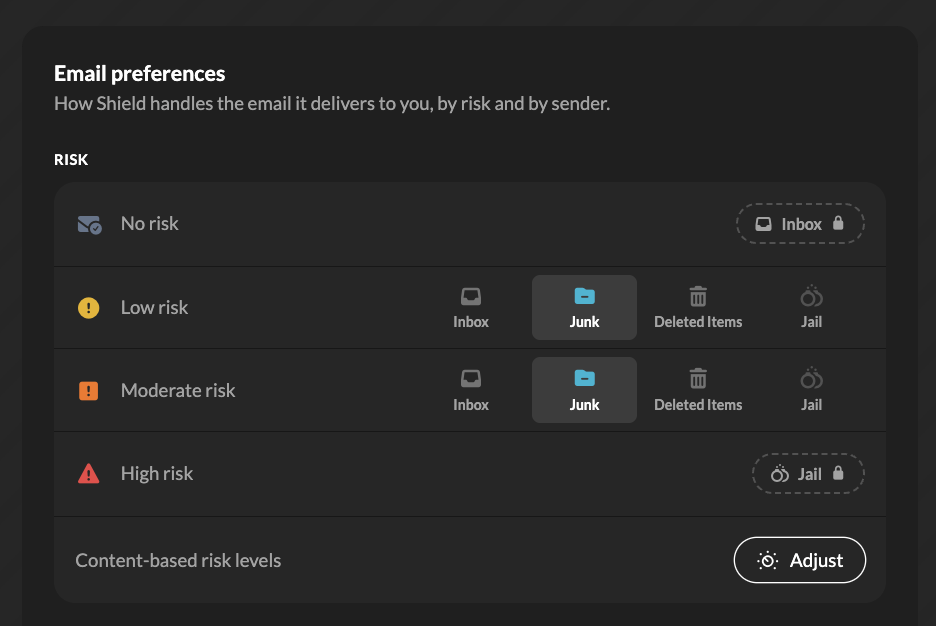 Risk
Risk destinations allow Shield to assign each message a risk level and delivers it according to the following settings:
No risk always delivered to Inbox (locked)
Low risk delivered to Inbox, Junk, Deleted Items, or Jail
Moderate risk delivered to Inbox, Junk, Deleted Items, or Jail
- High risk always delivered to Jail (locked)
To fine-tune how Shield assigns risk based on message content, select Adjust next to Content-based risk levels.
When a trusted sender’s mail looks risky
Trust priority allows the user to decide whether a sender’s trusted status or a message’s risk level takes priority. Choose one option:
- Moderate risk overrides trust: Moderate and high risk mail from trusted senders is delivered according to risk settings.
- Only high risk overrides trust: Mail from trusted senders reaches the user unless it is high risk.
New senders
New-sender destination settings apply to mail from senders the user has not previously received mail from.
- Deliver to folder: Choose the folder for first-time sender mail, such as the Other tab of the Inbox.
- Show a new sender banner in the email: Adds a banner to messages from new senders so they can be identified at a glance.
Delete behavior allows the user to choose whether deleting a message from Junk or the new-sender folder leaves the sender’s standing unchanged or silences them to Junk, Jail, or Trash.
- When you delete one: Select Do nothing to delete only the message, or silence the sender so their future mail goes to Junk, Jail, or Trash.
Silenced senders
These settings apply to silenced senders.
- Deliver their mail to: Choose where mail from silenced senders goes: Jail, Junk, Trash, or Archive.
- When you delete from Junk: Choose what Shield does when a message is deleted from the Junk folder. Select Do nothing to delete only the message, or silence the sender to Junk, Jail, or Trash.
- Noise Cancellation: Turn this on to have Shield automatically unsubscribe the user from silenced senders.
Shield app
These settings control how the Shield app displays the email and responds to actions.
- X-ray safe preview: Choose when the app shows a safe preview of message content: Always show, Hide if suspect, or Always hide.
- Default bundler “Done” action: Choose what happens to messages when a bundle is marked as done: Mark as read, Archive, or Delete.
- Time zone: Select the time zone Shield uses to display dates and times.
Shield Intelligence
Shield Intelligence learns from a user's mail to help sort the email they want from the email they don’t. While Shield Intelligence is in learning mode, it records the actions it would take without acting on their mail. Their settings in this section shape what it learns.
Trust
The Trust slider sets how readily Shield Intelligence acts on its own judgment. Options are Off, Cautious, Balanced, and Trusting. Balanced, the recommended setting, lets Shield Intelligence act when it is confident.
By default, the slider follows the organization’s preset. Move the slider to set a preferred level.
Instructions
Describe the kinds of email the user want to receive and the kinds they don’t, using up to 500 characters. Shield Intelligence combines user instructions with any instructions the organization’s administrator has set.
For example:
I run sales for the Southeast. Mail from prospects, partners and event organizers is welcome; cold recruiting and unsolicited vendor pitches are not.
Control Settings
Control Settings are available only to Shield Admins.
- Experience Level: Sets the user’s experience level, such as Beginner. Select Show comparison table to compare the available levels.
- Heads Up Display (HUD): Turns the Heads-up Display on or off for the user.
- Protection Level: Sets the user’s protection level, such as Maximum Protection.
- Email Guides: Select Send welcome email to send the user Shield’s welcome email.
Related to
Updated